---
title: How to Schedule the App Feed in the Smooth Commerce Merchant Portal
description: The Smooth Commerce Merchant Portal allows you to schedule your app feed, including both the feed template and individual feed cards. This guide will walk you through the steps to schedule your app feed effectively.
---
[Skip to content](https://kb.smooth.tech/knowledge/how-to-schedule-the-app-feed-in-the-smooth-commerce-merchant-portal#main-content)
English
Show submenu for translations
[Report An Issue](https://kb.smooth.tech/knowledge/kb-tickets/new?hsLang=en)
![CBF2D5DD-379E-4240-B922-9B02697B7958-2.png\]](https://kb.smooth.tech/hs-fs/hubfs/CBF2D5DD-379E-4240-B922-9B02697B7958-2.png?height=50&name=CBF2D5DD-379E-4240-B922-9B02697B7958-2.png)
Open main navigation
Close main navigation
- English
Show submenu for translations
- [Report An Issue](https://kb.smooth.tech/knowledge/kb-tickets/new)
- Check out our website
Check out our website
How can we help you?
- There are no suggestions because the search field is empty.
1. [Knowledge Base](https://kb.smooth.tech/knowledge?hsLang=en)
2. [Portal](https://kb.smooth.tech/knowledge/portal?hsLang=en)
3. [Engagement](https://kb.smooth.tech/knowledge/portal?hsLang=en#engagement)
# How to Schedule the App Feed in the Smooth Commerce Merchant Portal
## The Smooth Commerce Merchant Portal allows you to schedule your app feed, including both the feed template and individual feed cards. This guide will walk you through the steps to schedule your app feed effectively.
Steps:
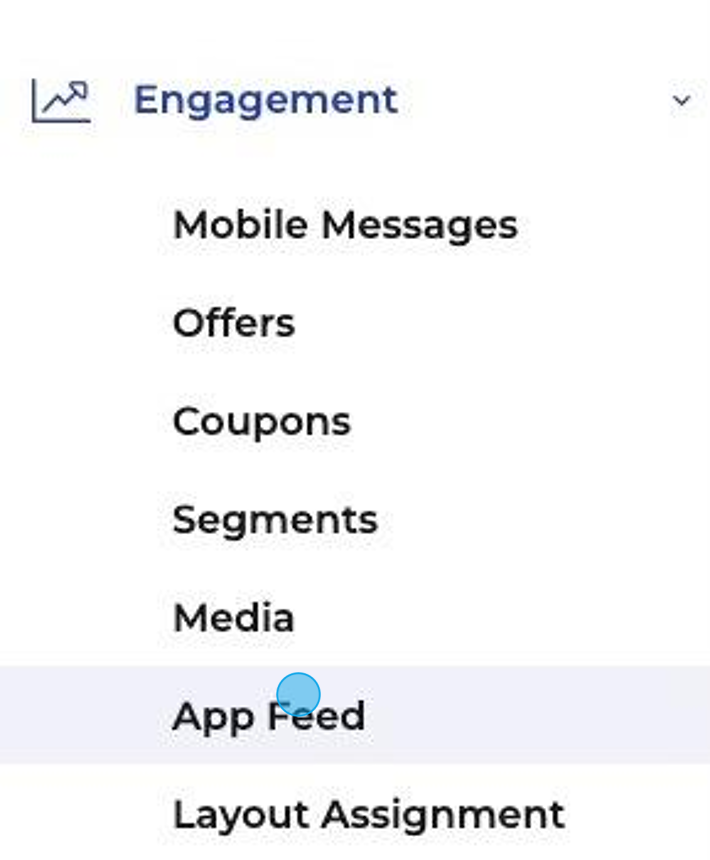
1\. Navigate to the App Feed Section:
- - Log in to your Merchant Portal.
- Select Engagement from the sidebar.
- Click on App Feed.
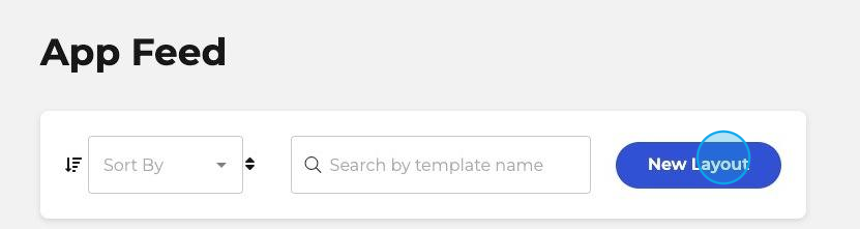
2\. Creating or Editing a Feed Layout:
- - To create a new layout, click on New Layout.
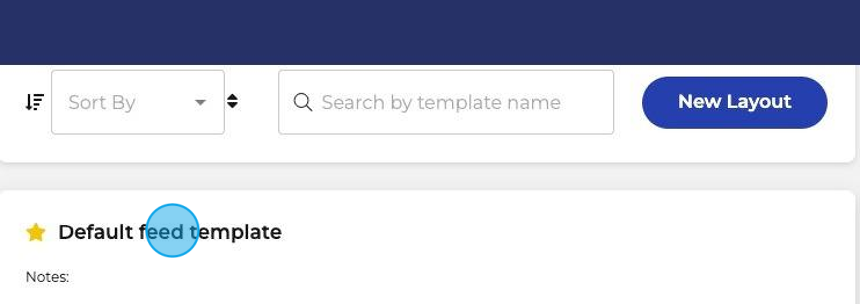
- To edit an existing layout, click on the desired template from the list.
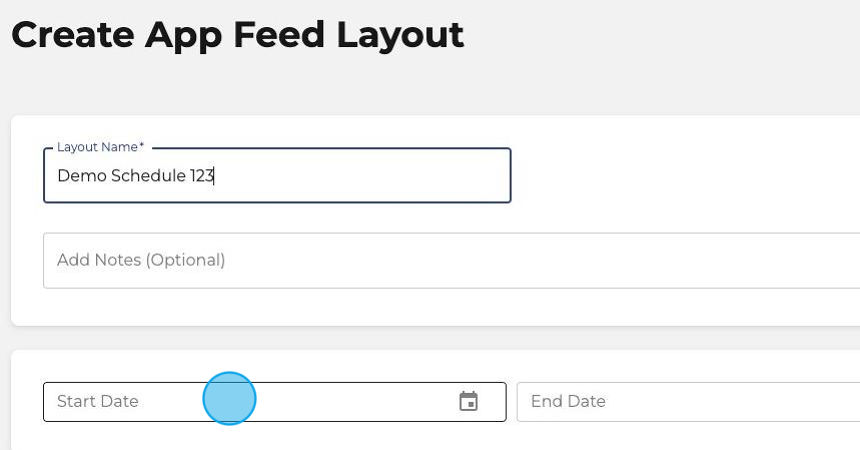
3\. Scheduling the Feed Layout:
- - Within the feed template settings, locate the Start Date and End Date fields.
- Optional Dates:
- Start Date: Set this to determine when the feed will start displaying (default time is 00:00:00).
- End Date: Set this to determine when the feed will stop displaying (default time is 23:59:59).
- If you leave these fields empty, the feed will remain unscheduled.
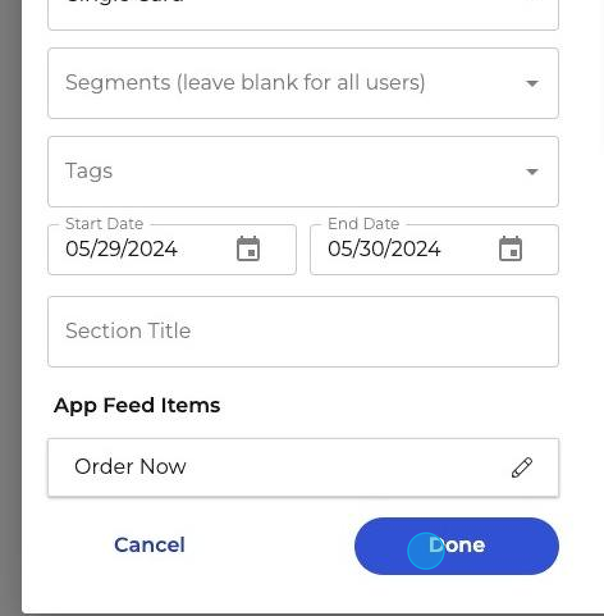
4\. Scheduling Individual Feed Cards:
- - Click on an individual feed card to edit.
- Set the Start Date and End Date as needed for each card.
5\. Save and Assign:
- - Save your changes.
- Assign the layout to the appropriate locations if needed.
Tips:
- Utilize the scheduling feature to highlight time-sensitive promotions and events.
- Ensure that the time settings cover the full duration intended for display.
- [Portal](https://kb.smooth.tech/knowledge/portal?hsLang=en#main-content)
- [Portal Overview](https://kb.smooth.tech/knowledge/portal?hsLang=en#portal-overview)
- [Dashboard](https://kb.smooth.tech/knowledge/portal?hsLang=en#dashboard)
- [Engagement](https://kb.smooth.tech/knowledge/portal?hsLang=en#engagement)
- [Menu Management](https://kb.smooth.tech/knowledge/portal?hsLang=en#menu-management)
- [Customer Service](https://kb.smooth.tech/knowledge/portal?hsLang=en#customer-service)
- [Finance](https://kb.smooth.tech/knowledge/portal?hsLang=en#finance)
- [App Settings](https://kb.smooth.tech/knowledge/portal?hsLang=en#app-settings)
- [Profile](https://kb.smooth.tech/knowledge/portal?hsLang=en#profile)
- [Settings](https://kb.smooth.tech/knowledge/portal?hsLang=en#settings)
- [Reporting](https://kb.smooth.tech/knowledge/portal?hsLang=en#reporting)
- [Product Platform Features](https://kb.smooth.tech/knowledge/product-platform-features?hsLang=en#main-content)
- [Add On Services / Products](https://kb.smooth.tech/knowledge/product-platform-features?hsLang=en#add-on-services-products)
- [Merchant Tablet](https://kb.smooth.tech/knowledge/merchant-tablet?hsLang=en#main-content)
- [Order Management](https://kb.smooth.tech/knowledge/merchant-tablet?hsLang=en#order-management)
- [Guides](https://kb.smooth.tech/knowledge/guides?hsLang=en#main-content)
- [Help Docs](https://kb.smooth.tech/knowledge/guides?hsLang=en#help-docs)
- [Forms](https://kb.smooth.tech/knowledge/guides?hsLang=en#forms)
- [Payment Processors & POS Integrations.](https://kb.smooth.tech/knowledge/payment-processors-pos-integrations?hsLang=en)
- [Support & Troubleshooting](https://kb.smooth.tech/knowledge/support-troubleshooting?hsLang=en#main-content)
- [Web & Portal Issues](https://kb.smooth.tech/knowledge/support-troubleshooting?hsLang=en#web-portal-issues)
- [App Issues](https://kb.smooth.tech/knowledge/support-troubleshooting?hsLang=en#app-issues)
- [Tablet Issues](https://kb.smooth.tech/knowledge/support-troubleshooting?hsLang=en#tablet-issues)
- [Add New Location/Transfer Ownership](https://kb.smooth.tech/knowledge/add-new-location-transfer-ownership?hsLang=en)
[](https://smooth.tech/)
Help Center
Copyright © 2026, Smooth Commerce