![CBF2D5DD-379E-4240-B922-9B02697B7958-2.png]](https://kb.smooth.tech/hs-fs/hubfs/CBF2D5DD-379E-4240-B922-9B02697B7958-2.png?height=50&name=CBF2D5DD-379E-4240-B922-9B02697B7958-2.png)
Steps:
1. Accessing the Menu Management Section:-
- Log in to your Merchant Portal.
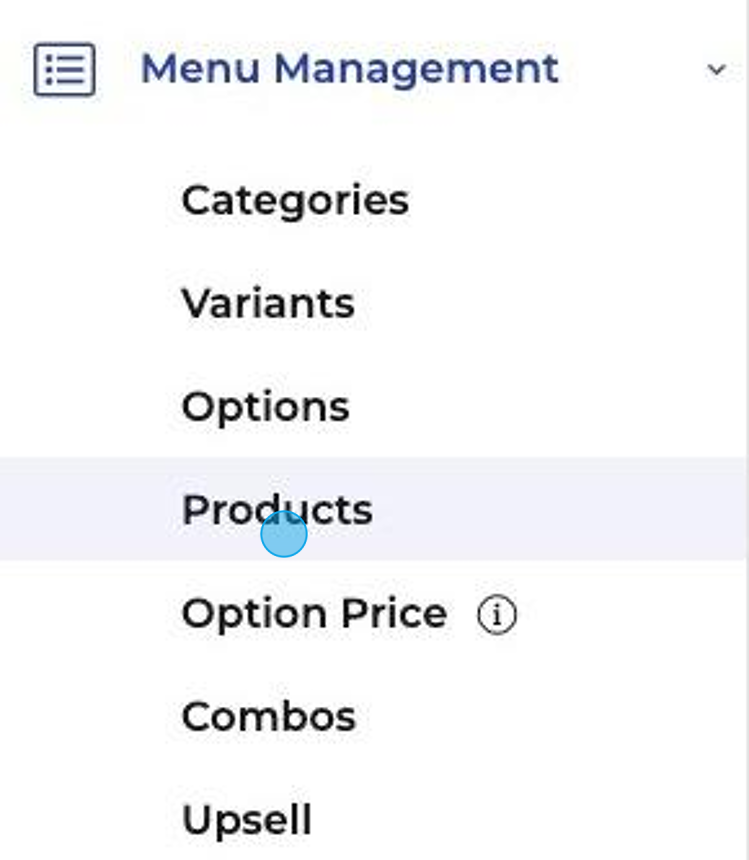
- Select Menu Management from the sidebar.
- Click on Categories, Variants, Options, Products, or Combos based on your need.
-
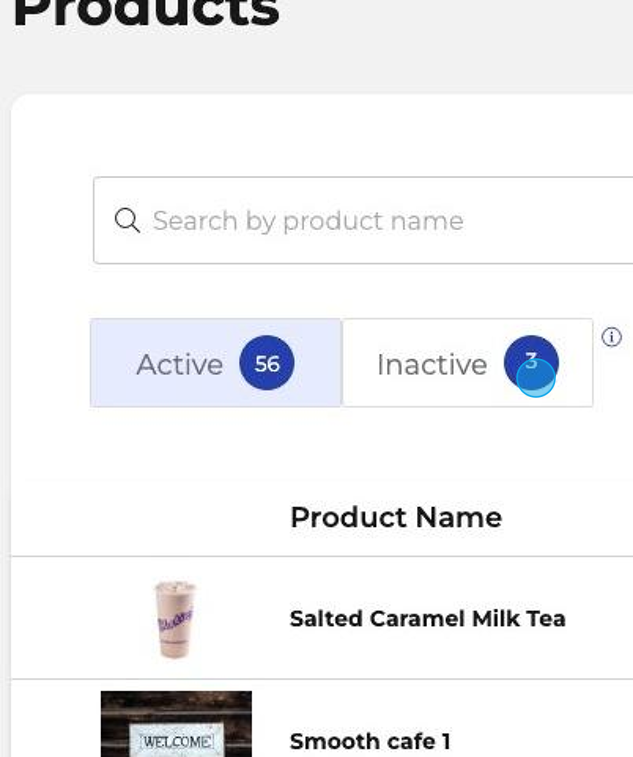
- The interface is divided into two tabs: Active and Inactive.
- By default, the Active tab is displayed showing all active items.
-
- Click on the Inactive tab to view items that are currently inactive.
-
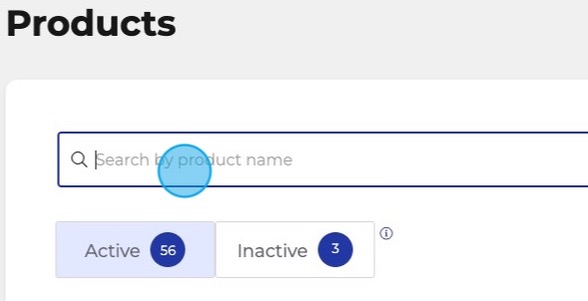
- Use the search bar to find specific items across both active and inactive tabs.
-
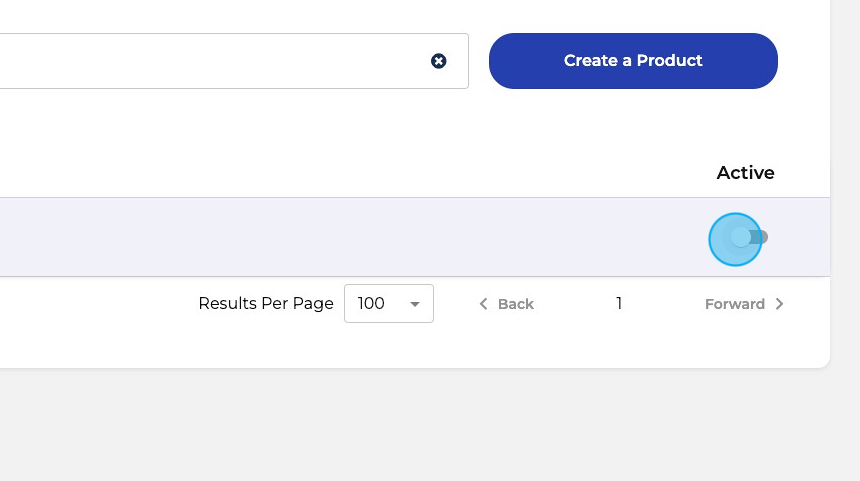
- To activate an item, ensure it is marked active in its respective section. This will move it to the Active tab.
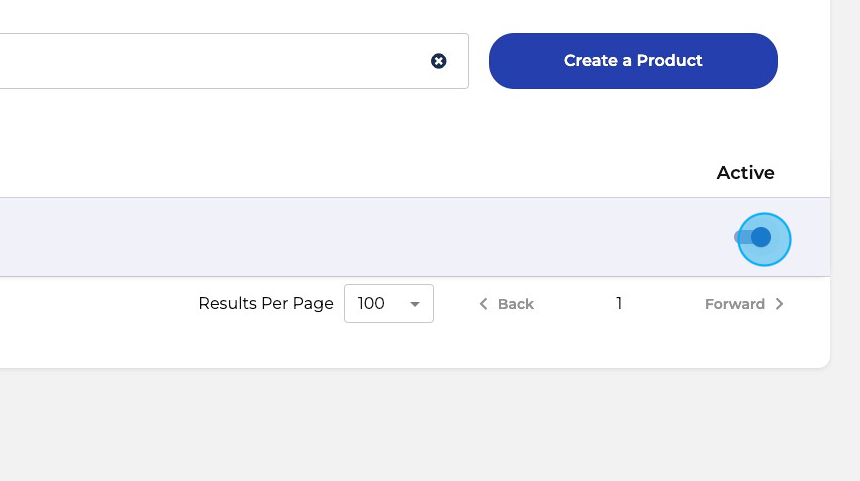
- To deactivate an item, mark it as inactive, moving it to the Inactive tab.
Tips:
- Regularly review inactive items to decide if they should be active or inactive.
- Utilize the search function to quickly locate items that need status changes.